
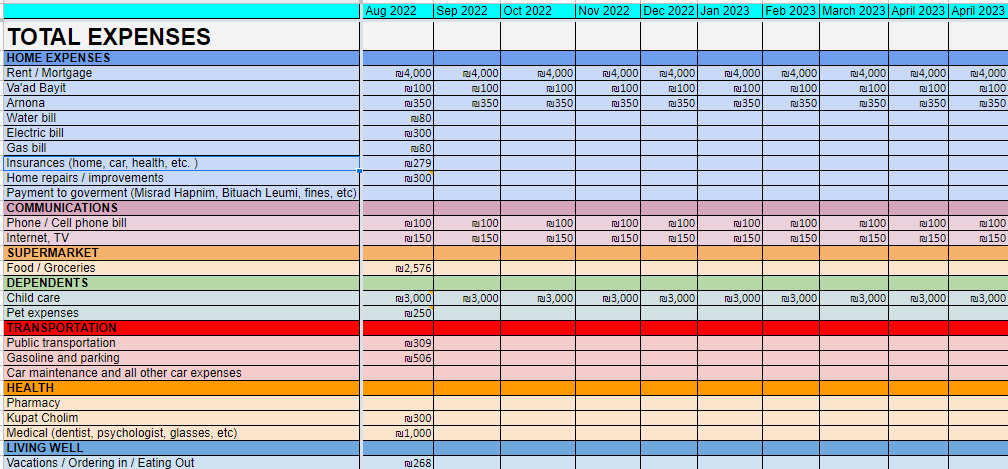
In our last post, we discussed why budgeting is important. In this post, we’ll talk about how. There are many budget tracking methods out there. All have their pros and cons. Many people swear by apps such as RiseUp (Israeli) or YNAB (American). If this works for you, go for it. For the nerds among us – and those who would rather not share their financial information with a third party – Excel/Google sheets can also be a great alternative. We have a shared Google sheet that we haven been using since 2015. We update in real time from our phones and want to share a copy with you.
You can access it and download it HERE וכאן. We filled in August for a fictional household, so you can see how it should look. This household, like us, minimizes their use of cash to make it easier to track. Make sure to delete all of our numbers before you start adding your own.
For starters, we want to remind you that this is a template. Feel free to customize it to fit your lifestyle. If tracking each credit card cycle (instead of calendar month) makes more sense for you, do it that way. The most important thing is to be consistent.
As you can see in our example, we’ve broken down expenses by category. Each payment in the same category is added with the Sum function. For one-time expenses that we may not remember later, we add a comment/note so that we can refer back later. For recurring expenses that are always the same, feel free to fill in the months ahead until that subscription ends.
The numbers in your sheet should closely reflect the ones you see in your bank account.
No real change happens overnight, so remember that while this may be daunting at first, you are taking charge of your finances and will improve over time.
Congrats! Now that you track your expenses, you will be able to see trends in your spending, know what to expect and make changes as necessary. You can now control your money instead of your money controlling you.
You got this!
-
I like your template. I am like you, I tried a few apps but nothing even gets close to the custom models you can make on Excel in terms of “making it your own”.
LikeLike
-

[…] the end of each shop, we make sure to add the total cost to our expense tracker and upload a photo of the receipt to the Strauss app, which we use for freebies and […]
LikeLike
-
Love this!! So in depth and helpful! Thank you for sharing this 🙂
LikeLike
-
Glad we were able to help 🙂
LikeLike
-
Hi. I tried downloading the excel spreadsheet and cannot change anything or add anything, how do I use the spreadsheet?
LikeLike
-
Hi Elana! Under “File”, you can choose either “Download”, which will download an Excel copy, or “Make a Copy”, which will create a copy that belongs to you. Hope this helps 🙂
LikeLike
-
-


 Chasing the Fionist Dream
Leave a reply to LanEsh Cancel reply